
Intune can now manage Windows Server (in preview): what works, what doesn't, and when to use Azure Arc instead
Microsoft has opened a preview that lets you enrol Windows Server into Intune as a fully managed device, next to your PCs: compliance, Conditional Access, settings catalog, Win32 apps, update rings and LAPS. It's Insider builds and test tenants only for now, and there are some sharp edges, especially for Azure VMs. Here's what's in it, how to try it, and where Azure Arc still fits.
On this page
Until now, the only way Intune could touch a Windows Server was through Defender for Endpoint security settings management, which delivers antivirus, firewall and a few other security policies, and nothing else. On 17 November Microsoft announced a preview of full Intune management for Windows Server: the server enrols like a PC, gets an Entra device identity, and can receive configuration, compliance, apps and update policies.
Before you get excited about your file servers: this is a non-production preview on Insider builds only. Microsoft says it doesn't support production use, and it doesn't work on Windows Server 2022 or 2025.
Who it's for
Microsoft's FAQ is unusually clear: use Intune for "endpoint-like servers that have an associated user identity" that you want to manage alongside your Windows clients. For everything else, use Azure Arc. The examples Microsoft gives:
- Privileged access workstations and jump boxes running Windows Server.
- Dev and test servers people sign in to directly.
- Factory-floor terminals and branch or shop servers.
- Persistent single-session hosts, including Azure Virtual Desktop Hybrid.
What you need
- A Windows Server vNext Insider build, 29621.1000 or later, with Desktop Experience. Server Core isn't supported. Physical servers and VMs both work.
- An Intune test tenant. Microsoft recommends against trying this in production Intune, even though it only affects servers.
- A user. Userless enrolment isn't supported. The enrolling user becomes the server's primary user.
- Licences you already have. No extra subscription is needed for the preview. Your existing Intune, Conditional Access and Defender for Endpoint for servers entitlements apply, and automatic enrolment needs Entra ID P1 or P2. Microsoft says this covers the preview only, not future licensing.
- Internet access to the Microsoft services used for enrolment. Air-gapped servers aren't supported.
Before you allow enrolment: check your client policies
This is the part most likely to catch people out. Policies assigned to All devices, to users or to dynamic groups will apply to servers as soon as they enrol. Creating a separate server group doesn't exclude servers from anything. Your Windows 11 compliance baseline, Edge settings and the app a user has assigned to them could all land on a server.
- Audit configuration, compliance, endpoint security, app, script, update and policy set assignments.
- Create an assignment filter for servers and add it in exclude mode to client policies that support filters. In Intune admin center: Tenant administration > Assignment filters, create a Windows 10 and later managed devices filter on the
operatingSystemSKUproperty. The new server values are Standard (7), Datacenter (8), their evaluation editions (79 and 80) and Datacenter: Azure Edition (407). - For workloads without filter support, which includes PowerShell scripts and policy sets, use explicitly scoped groups and exclusions.
- Check who can run remote actions, read BitLocker keys and see LAPS passwords. There are no new RBAC roles, so existing scope tags decide which admins can see and act on servers.
Turning it on
Server enrolment is blocked by default. In your Windows enrolment restriction, set Server devices to Allow. If servers will enrol through "Add work or school account", Personally owned devices must also be set to Allow; Microsoft links to its best practice for blocking personal devices another way if that's a concern.
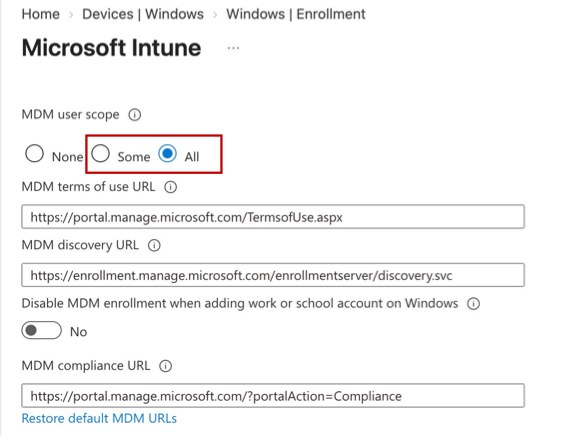
Then in Intune admin center: Devices > Enrollment > Windows > Automatic Enrollment, set the MDM user scope to Some with only your pilot users, and set "Disable MDM enrollment when adding work or school account on Windows" to No. The MDM user scope covers servers and PCs alike.
Enrolling a server
New server: Entra join
On the server, go to Windows Settings: Settings > Accounts > Access work or school > Connect and pick Join this device to Microsoft Entra ID. Sign in as a pilot user, confirm the organisation and select Join. It's exactly the same as joining a Windows 11 PC.
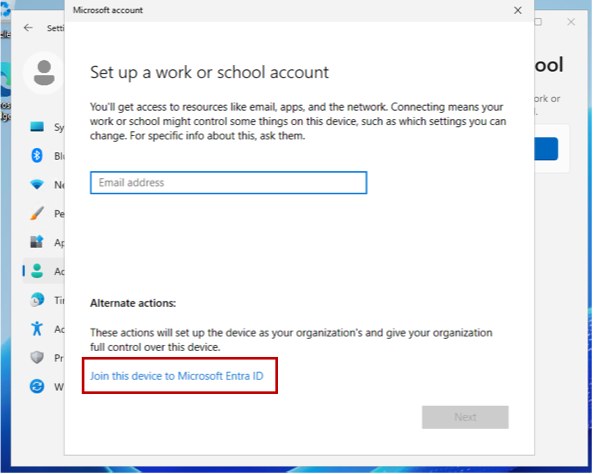
Run dsregcmd /status afterwards and look for AzureAdJoined : YES. In Entra, the device should show as Microsoft Entra joined and managed by Intune.
Existing domain server: hybrid join
If the server needs Active Directory, make it Entra hybrid joined first, then enrol it with the same Group Policy automatic enrolment you'd use for Windows 11. The first user to sign in becomes the primary user. Limit the GPO to the pilot servers. Device enrolment manager accounts don't work for Group Policy enrolment.
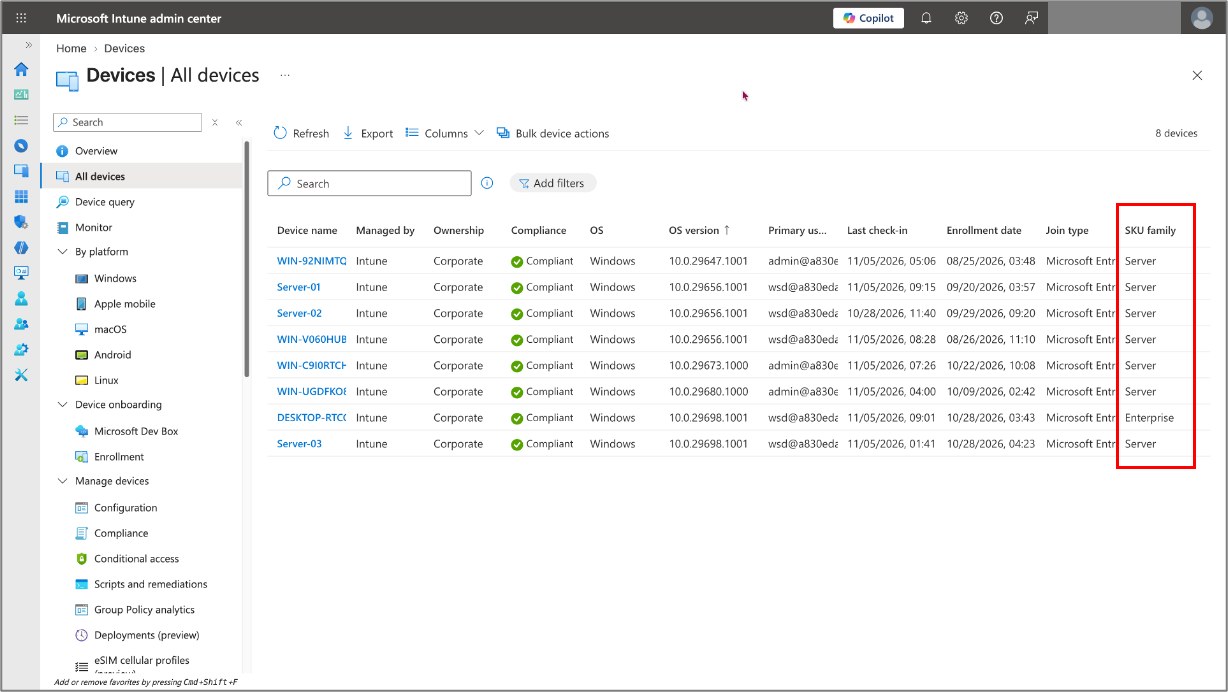
Enrolled servers appear in Intune admin center: Devices > All devices next to your PCs. Add the SKU family column to tell them apart.
What works
- Compliance policies, and compliance in Conditional Access
- Settings catalog (about 60 groups) and custom OMA-URI profiles
- Endpoint security: Antivirus, Firewall, Disk encryption, LAPS, Attack surface reduction
- Device restrictions and Kiosk templates
- Admin templates for Edge, Chrome, Firefox, Microsoft 365 Apps, OneDrive and Acrobat
- Win32 apps and Company Portal
- Update rings, including deferrals, deadlines and maintenance windows
- Remote actions: sync, restart, BitLocker and LAPS rotation, diagnostics, Defender scan and update, retire, wipe, delete
- Windows Server 2022, 2025 and Server Core
- Userless, bulk and Autopilot enrolment
- Quality, feature and driver update policies
- Firewall, antivirus and antispyware compliance checks
- Endpoint Privilege Management and Resource Explorer
- Configuration Manager co-management
- Moving servers from Defender security settings management to Intune
- Multi-session and non-persistent hosts
Compliance
Create a Windows compliance policy just for servers rather than reusing your Windows 11 one. Leave Firewall, Antivirus, Antispyware and Require device compliance from Configuration Manager as Not configured: on servers they report Error or Not applicable. That only applies to the compliance checks. You can still configure firewall and antivirus with endpoint security policies.
BitLocker isn't installed on Windows Server by default. Add the BitLocker Drive Encryption feature and restart before you test encryption compliance or a disk encryption policy.
Configuration
The settings catalog has a new Windows Server value in its OS edition filter. Use it to find settings that can apply to servers.
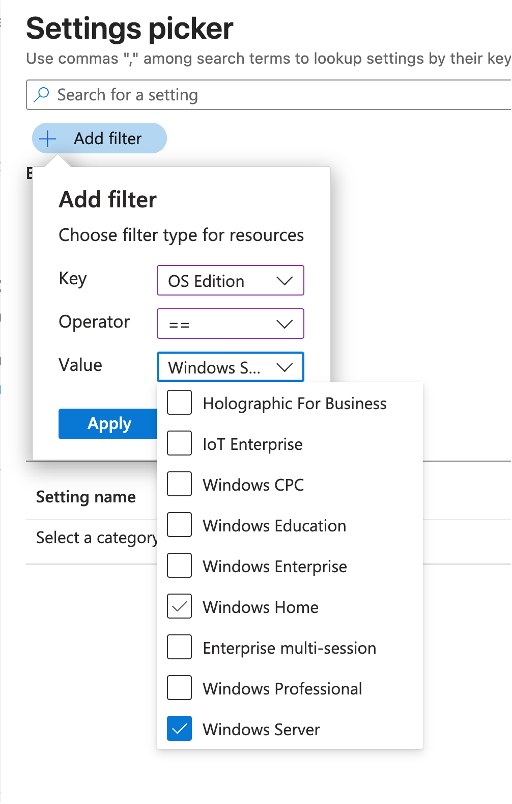
The filter only changes what the picker shows. It doesn't stop a setting reaching PCs, and whether a setting really works depends on the build. The groups Microsoft lists include Local Policies Security Options, User Rights, Kerberos, Credential Providers, Device Guard, Remote Desktop, Remote Management, BITS, Secure Boot, Local Users and Groups, and Sudo.
Microsoft repeats one warning several times in the guide: a policy showing Succeeded doesn't prove the setting works on Windows Server. Check the setting on the server itself.
Sign-in methods
| Method | Local sign-in | Remote sign-in |
|---|---|---|
| Smart card and YubiKey (PIV) | Yes | Yes |
| FIDO2 security key | Yes | Yes |
| Windows Hello for Business | No | Yes, over RDP |
| Windows Hello through enhanced VM Connect | No | Yes |
| Web Sign-In | No | No |
FIDO2 keys for local sign-in on a server is a genuinely useful addition for jump boxes and privileged access workstations.
The Azure VM warning
If you test this on Windows Server Insider VMs in Azure, read this section of the guide carefully. Enrolling an Azure VM in Intune changes who can control it:
- Anyone with the right Intune role and scope can manage the VM, without being in the Azure RBAC groups you normally use.
- Intune admins can wipe the VM without Azure permissions or just-in-time access.
- Azure Update Manager and Intune update rings can both change update behaviour on the same VM.
- Azure and Intune compliance policies can overlap on the same VM. Microsoft says to run those Azure policies in audit mode for Intune-managed servers.
- Users signing in can trigger app installs from their own Intune assignments, unless filters exclude servers.
- Landing zone build templates won't capture what Intune changes on the VM, which makes troubleshooting harder.
If you run landing zones with tight Azure RBAC and PIM around VMs, keep these test VMs well away from them.
Intune and Arc on the same server
Arc isn't required, but Microsoft describes using both: the endpoint team uses Intune for apps, security settings, patching and compliance, while the infrastructure team connects the same server to Azure with Arc for Azure Monitor and Azure Policy. The rule is clear ownership: "they should not enforce competing policies for the same settings or workload."
Known issues
- MFA Conditional Access can stop syncs. If a CA policy requiring MFA covers servers, they can stop syncing with Intune without prompting anyone. Access work or school shows "Sync wasn't fully successful because we weren't able to verify your credentials". Select Sync and sign in to fix it.
- Other MDM features aren't blocked. Anything that works over OMA-DM can reach an enrolled server if it's in scope, even if it's outside the core workloads listed above.
- Unsupported remote actions still show in the portal. They just don't work on servers. Be careful with retire, wipe and delete.
How I'd test it
- Use a separate test tenant, not production Intune.
- Install a vNext Insider build (29621.1000 or later) with Desktop Experience, as a local VM or an isolated Azure VM.
- Review every broad assignment and add a server exclusion filter before allowing enrolment.
- Allow Server devices (and Personally owned devices) in a dedicated enrolment restriction, and set the MDM user scope to one pilot user.
- Entra join the server and confirm it with
dsregcmd /status. - Start with a server compliance policy, LAPS and a small settings catalog policy, and check each one on the server itself.
- Report Intune problems through Microsoft's preview feedback form, and Windows Server problems through Feedback Hub under Windows Server > Management.
For production servers, nothing changes yet: Arc is still Microsoft's recommended management plane. But for the handful of servers that behave like workstations, managing them with the same Conditional Access and compliance rules as your PCs will be worth the wait.
Sources
- Manage Windows Servers alongside PCs with Microsoft Intune (Microsoft Tech Community)
- Get started with Windows Server management (Insider preview) (Microsoft Learn, source of the screenshots)
- Get started with Windows Server Insiders preview (Microsoft Learn)
- Azure Arc-enabled servers overview (Microsoft Learn)
Suggest a topic or a tool
Related posts
 Azure What's new · Windows
Five Microsoft products reach end of support tomorrow: the last-day checks
Tomorrow, Tuesday 10 November, five Microsoft products reach end of support on the same day, and it's Patch Tuesday. If you haven't moved everything yet, here's what to check today, and what to do about anything that won't make it.
 Azure What's new · Windows
10 November is the biggest end-of-support day of the year: what ends, how to find it, and what to move to
.NET 8 and 9, PowerShell 7.4 and 7.5, the Azure Functions in-process model, Windows 11 23H2 Enterprise and Education, and IoT Edge 1.5 all reach end of support on Tuesday 10 November 2026, which is also Patch Tuesday. Here's how to find each one in your estate and what to move it to.
 Intune Windows · What's new
Intune in September: deployment rings, faster compliance and stricter automation
Five recent Intune changes that affect how you roll out, how quickly devices become compliant, and whether your automation keeps working.