Admin Lens
A free extension for Edge and Chrome that explains Entra, Intune and Windows codes where you see them, turns raw Microsoft GUIDs and Azure resource IDs into names, decodes access tokens on your device, and rates Microsoft Graph permissions before you click Grant.
Download Admin Lens 1.1.0 (zip, 30 KB)
What it does
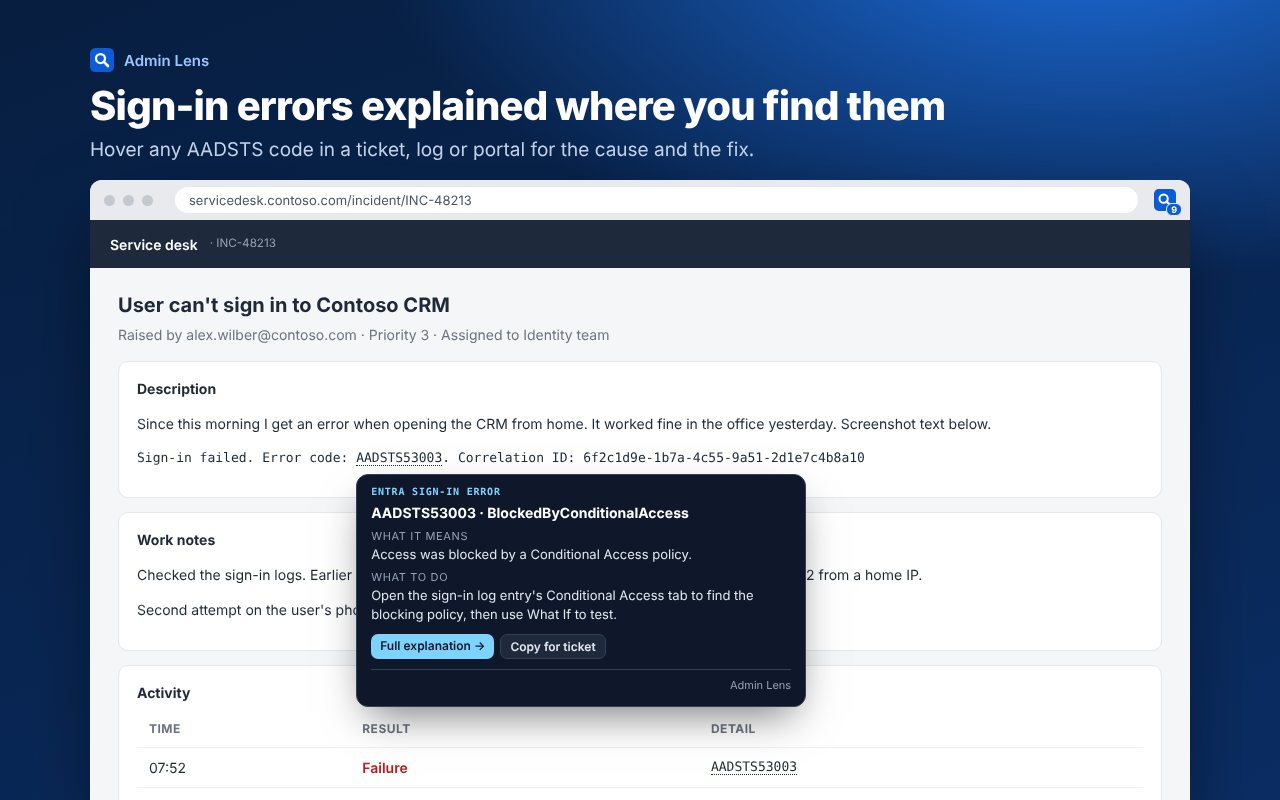
Admin Lens underlines the codes, IDs and permissions you meet every day in portals, tickets and logs. Hover over one and a card tells you what it is, what it means and what to do, with a button to copy a clean summary into your ticket.
Errors and events
- Entra sign-in errors. AADSTS codes, including a bare
"errorCode": 50076in sign-in log JSON, from the error code library. - Intune and Autopilot codes. Hex enrolment and deployment codes. Unknown hex values are left alone, so random numbers don't light up.
- Windows events. Event IDs, logon status codes such as
0xC000006A, logon types and Kerberos failure codes, with the log they come from and what to check.
IDs, made readable
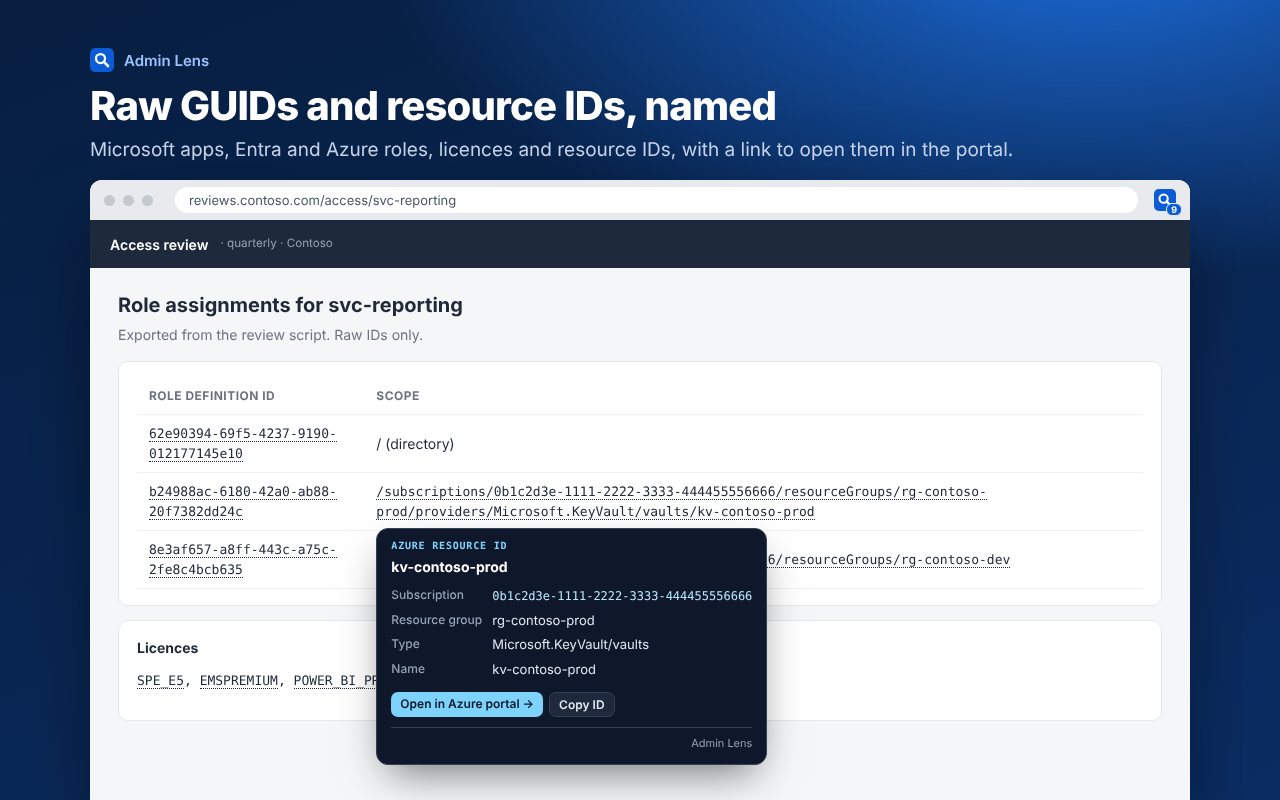
- Microsoft GUIDs. Over 5,000 of them: Microsoft first-party apps, Entra role template IDs, Azure built-in role IDs, Graph permission IDs, licence SKU IDs and service plans.
- Licence part numbers.
SPE_E5,EMSPREMIUMand the rest, with the product name and what's included. - Azure resource IDs. Split into subscription, resource group, type and name, with a button to open the resource in the Azure portal.
- UTC times. Times in logs ending in
ZorUTCshow in your own time zone, with how long ago they were.
Tokens and permissions
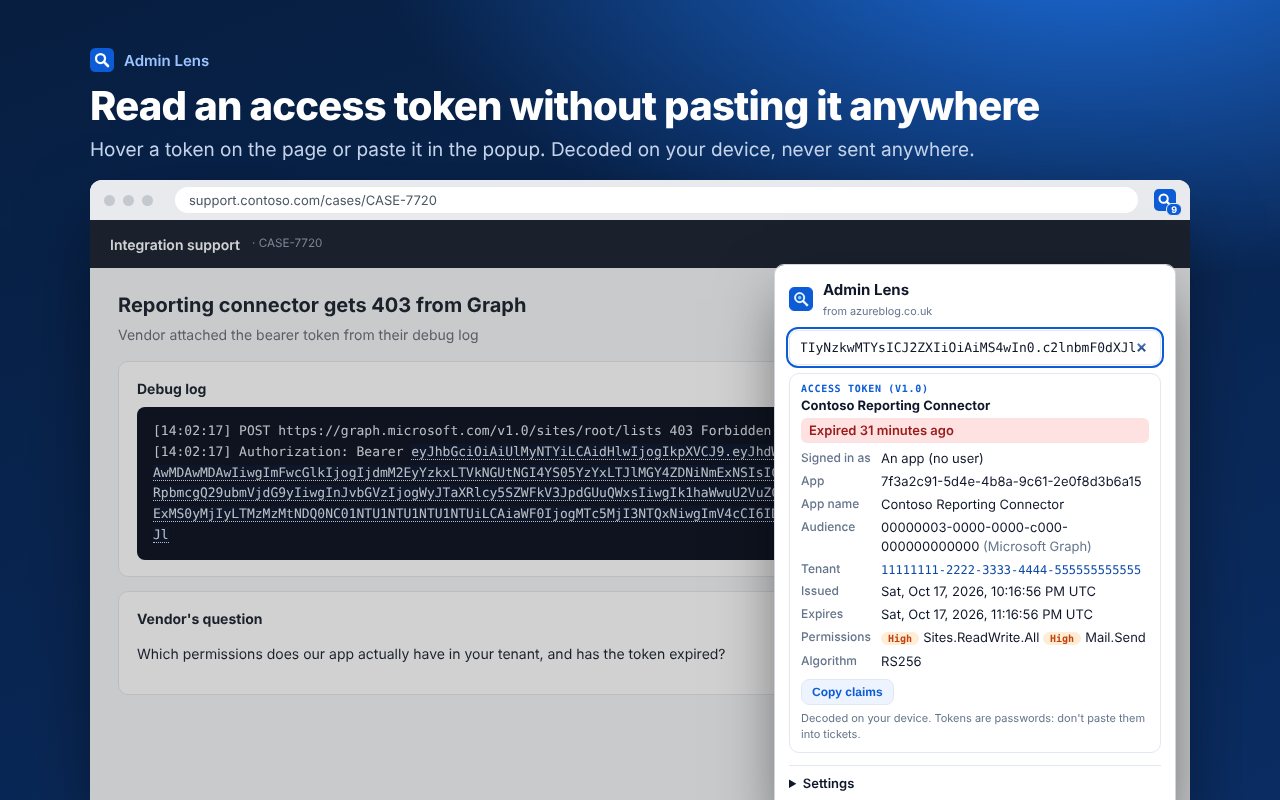
- Access token decoder. Hover a JWT in a log, or paste one into the popup, to see who it's for, which app, the audience, the scopes and roles with their risk, any directory roles, and whether it has expired. Decoded on your device and never sent anywhere.
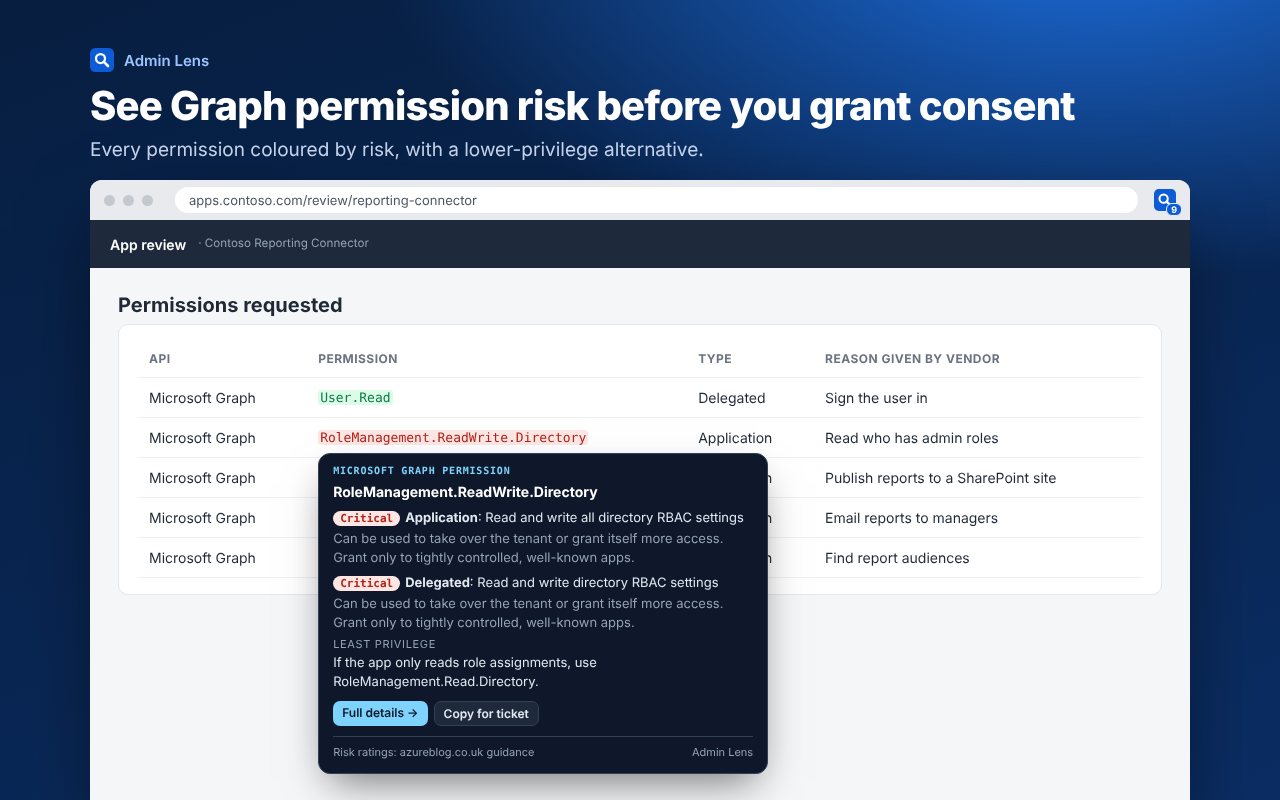
- Graph permission risk. Application and delegated risk on consent prompts and API permission screens, why it matters, and a lower-privilege permission to use instead where there is one.
Quick ways in
- Right-click to explain. Select any text on any site, right-click and choose Explain with Admin Lens. This works even on sites where highlighting is off, and only looks at what you selected.
- Address bar. Type
al, a space, then a code, GUID, role, licence or permission. - Keyboard. Alt+Shift+L opens the popup.
- Toolbar. The badge counts Microsoft retirements and changes due in the next 30 days. The popup lists them, plus the newest posts from this site, and searches everything above by code or name.
- Pause here. One click in the popup turns highlighting off for the site you're on.
Where it works
Out of the box it runs on the Azure portal, the Entra, Intune, Microsoft 365 admin and Defender portals, Microsoft Learn, the Microsoft sign-in page and this site. In the settings you can switch it on for every site, which is handy for ticketing tools and log viewers. Your browser will ask you to confirm that.
Install it
- Download admin-lens.zip and unzip it to a folder you'll keep, for example
C:\Tools\admin-lens. - In Edge go to
edge://extensions, or in Chrome go tochrome://extensions. - Turn on Developer mode.
- Choose Load unpacked and pick the folder.
- Pin Admin Lens to the toolbar so you can see the deadline count.
To update, download the new zip, unzip it over the same folder and press Reload on the extensions page.
If your organisation manages your browser, extension policies may block unpacked extensions. Ask your admin team, or try it on a personal profile first.
Privacy
- Admin Lens never sends the pages you look at anywhere. All the matching happens inside your browser.
- Every 12 hours it downloads the public open data files from azureblog.co.uk: error codes, event IDs, Graph permissions, Microsoft IDs, deadlines and the latest post titles. That's the only network request it makes.
- Tokens are decoded on your device. They are never stored or sent anywhere.
- No accounts, no analytics, no tracking. Settings are stored in your browser only.
- It doesn't read password fields, text boxes or anything you type.
The full detail is in the Admin Lens privacy policy.
Settings
Click the toolbar icon and open Settings to turn highlighting off, switch error codes, Graph permissions, IDs and tokens, or UTC times on and off separately, enable it on every site, or refresh the data straight away.
Graph permission risk ratings are this site's own guidance, not Microsoft's. Error codes and deadlines link to Microsoft's documentation, which is always the final word.