Introducing Admin Lens: errors explained right where you see them
Admin Lens is a free browser extension for Azure, Entra and Intune admins. It explains error codes, Microsoft IDs, tokens and Graph permissions on the page you're already looking at, and copies a clean summary into your ticket. Now live on Microsoft Edge Add-ons and the Chrome Web Store.
Most admin work starts with something you don't recognise. An error code in a ticket, a GUID in a sign-in log, a token a vendor pasted into an email, or a permission an app wants you to approve. None of it is hard to look up. It's just slow, and you do it dozens of times a week.
Admin Lens is a free browser extension that puts the answer next to the thing you're looking at. It's live now on Microsoft Edge Add-ons and the Chrome Web Store.
Hover, read, copy
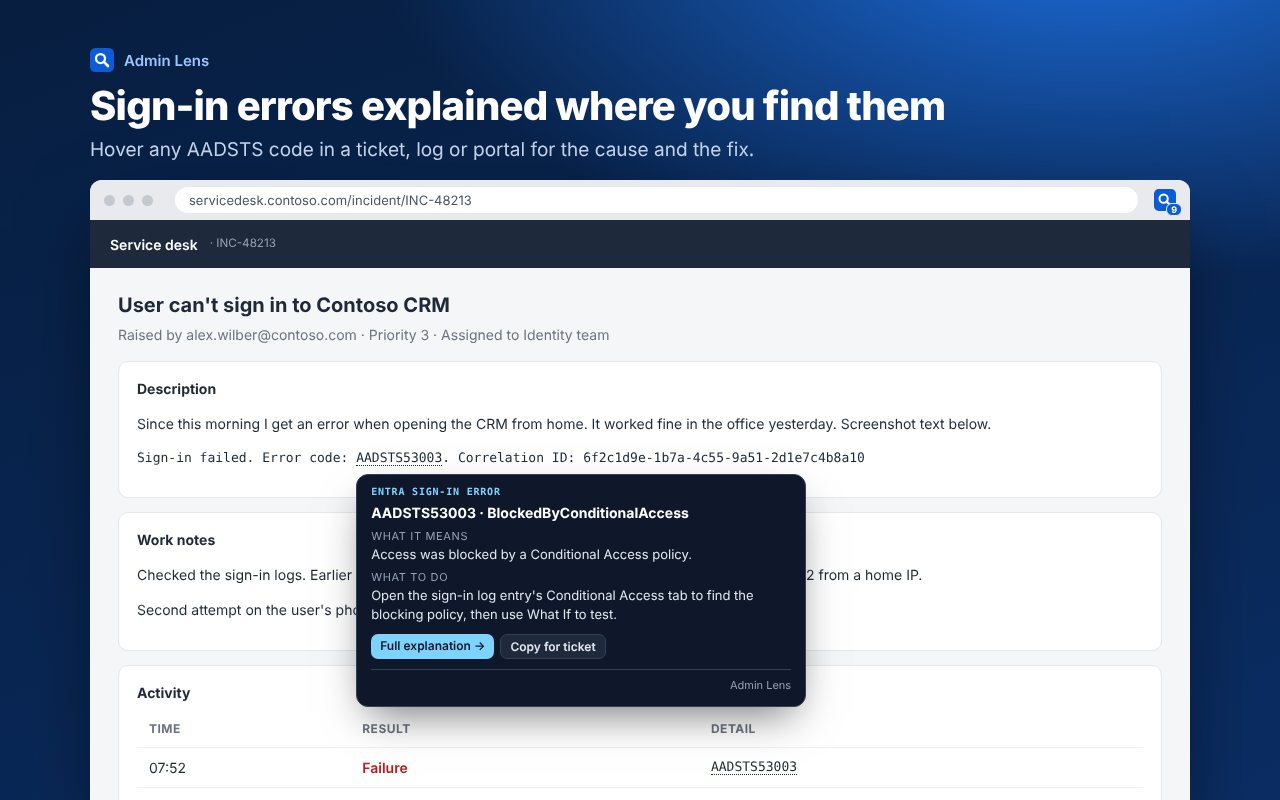
On the Azure portal, the Entra and Intune admin centres, the Microsoft 365 admin and Defender portals, and Microsoft Learn, Admin Lens underlines anything it can explain. Hover over it and a card tells you what it is, what it means and what to do next.
Every card has a Copy for ticket button. It copies a short plain-text summary, with the code, what it means, the fix and a link, so your ticket notes are useful to whoever picks them up next.
What it understands
- Entra sign-in errors. AADSTS codes from the error code library, including a bare
"errorCode": 50076in sign-in log JSON. - Intune and Autopilot codes. Hex enrolment and deployment codes. Unknown hex values are left alone, so random numbers on a page don't light up.
- Windows events. Event IDs, logon failure status codes, logon types and Kerberos failure codes, with what to check.
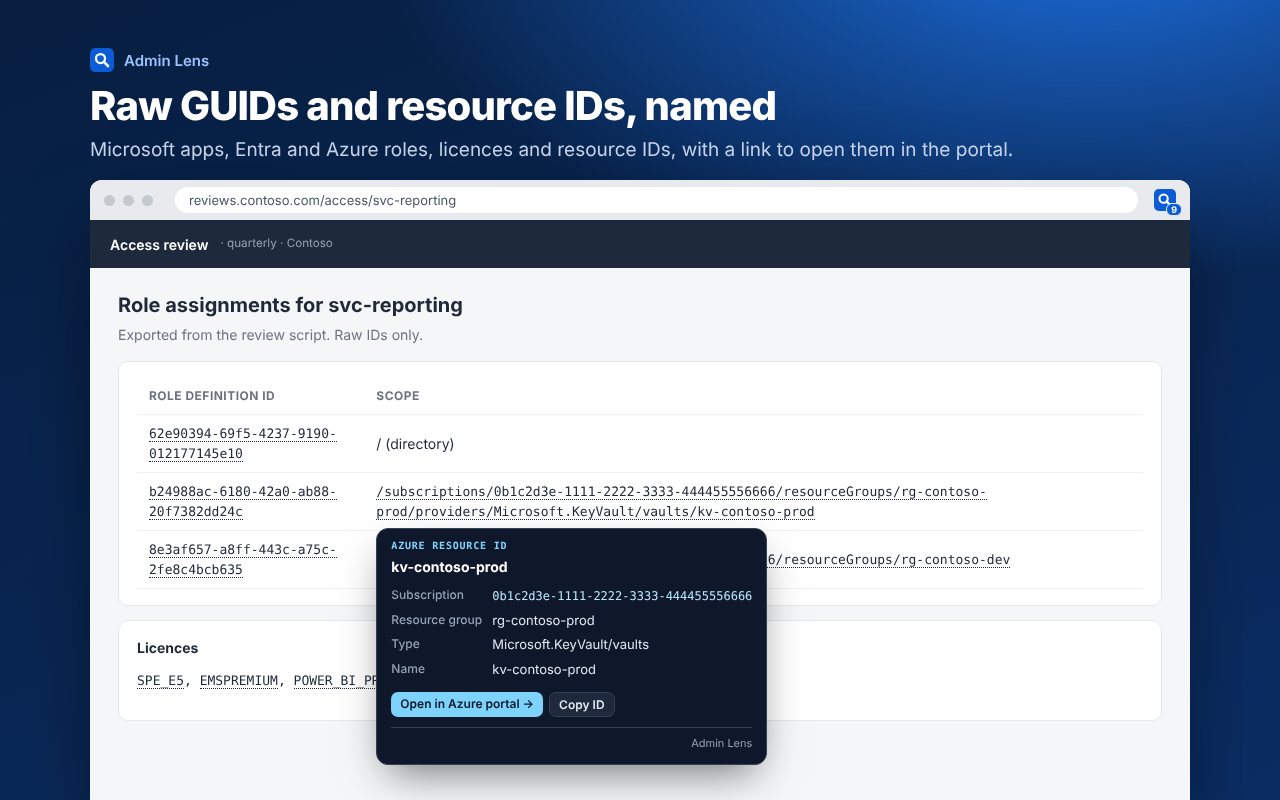
- Microsoft IDs. Over 5,000 well-known GUIDs: Microsoft first-party apps, Entra role template IDs, Azure built-in role IDs, Graph permission IDs, licence SKUs and service plans. Licence part numbers such as
SPE_E5get their product names too. - Azure resource IDs. Split into subscription, resource group, type and name, with a button to open the resource in the Azure portal.
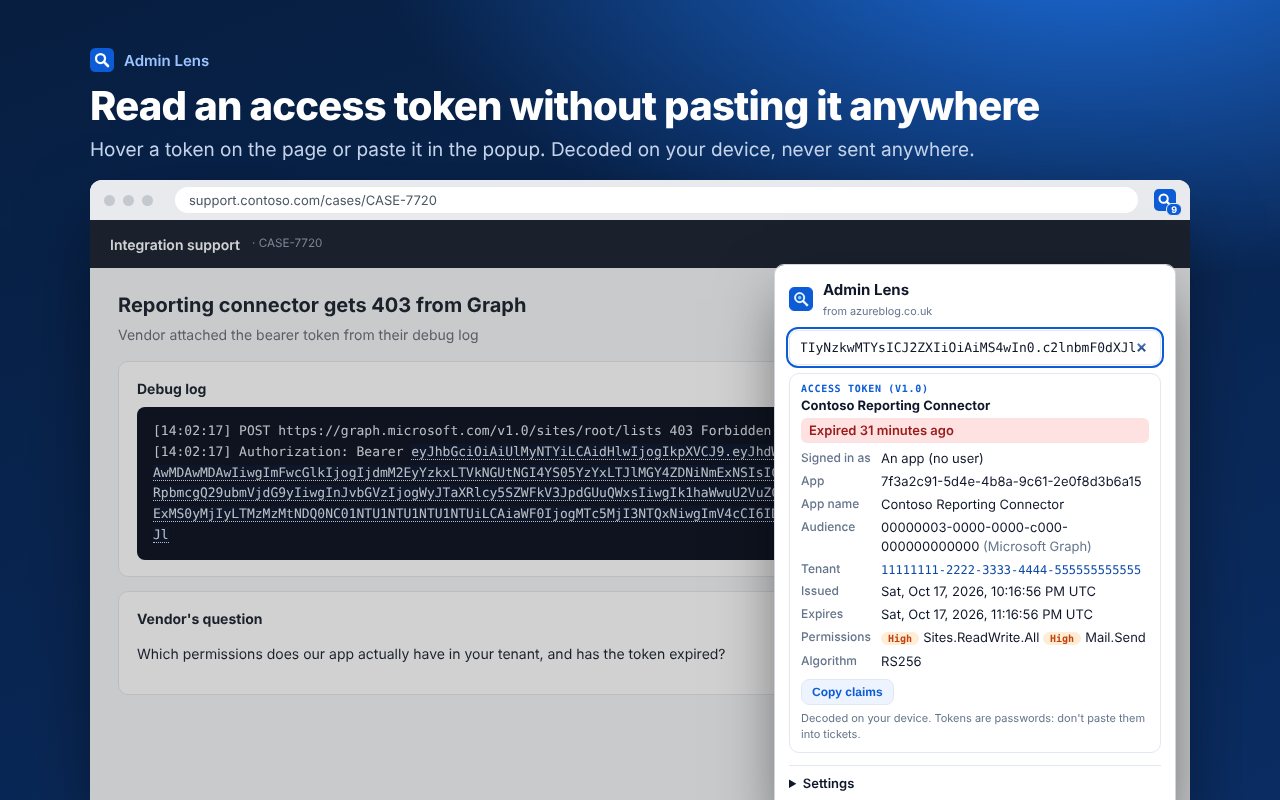
- Access tokens. Hover a JWT, or paste one into the toolbar popup, to see who it's for, which app, the audience, the scopes and roles with their risk, any directory roles, and whether it has expired.
- Graph permission risk. Application and delegated permissions are coloured by risk on consent prompts and API permission screens, with a lower-privilege alternative where there is one.
- UTC times in logs, shown in your own time zone.
Three quick ways in
- Right-click any selected text and choose Explain with Admin Lens. It works on any site, including ticketing tools, and only looks at what you selected.
- Type
aland a space in the address bar, then a code, GUID, role, licence or permission name. - Press Alt+Shift+L to open the popup. It searches everything above and lists the next Microsoft deadlines, which the toolbar badge also counts.
Private by design
An extension that reads admin portals has to earn trust, so Admin Lens is built to need as little as possible:
- All matching and decoding happens inside your browser. The pages you look at and the tokens you decode are never stored or sent anywhere.
- The only network requests download public reference data from this site's open data every 12 hours.
- No accounts, no analytics and no tracking. It skips password fields, text boxes and anything you type.
- It only runs on Microsoft admin portals and Learn unless you switch on Work on every website, and you can pause it on any site from the popup.
The full detail is in the Admin Lens privacy policy.
Get it
- Edge: install from Microsoft Edge Add-ons. It updates itself.
- Chrome: install from the Chrome Web Store. It updates itself too.
If it gets something wrong, or there's an error you'd like it to explain, email support@azureblog.co.uk. Graph permission risk ratings are this site's own guidance. Error codes, roles and deadlines link to Microsoft's documentation, which is always the final word.
Suggest a topic or a tool
Related posts
 Intune Conditional Access
Rolling out "require compliant device" without a flood of tickets
Requiring a compliant device is one of the strongest Conditional Access controls you can apply. It's also one of the easiest to get wrong. A step-by-step rollout.
 Entra Security · Governance NEW
Every Entra default user permission, what it does, and how to check yours in one command
The agent blueprints toggle is the newest switch under Default user role permissions, but it isn't the only one. Here's what each setting controls, its Graph name, and a short PowerShell check to see where your tenant stands.
 Entra Security · What's new NEW
From November, every user can create agent blueprints in Entra unless you turn it off
Message Center MC1506733: starting in early November 2026, default users can create agent identity blueprints unless an admin switches off a new user setting. What a blueprint controls, who's affected, and how to turn it off before the rollout.